TPSClear for HubSpot: setup guide.
Everything you need to install, configure, and run TPSClear on HubSpot. Installation takes about five minutes via OAuth, with no engineering required.
Before you start
- A HubSpot account where you are a Super Admin, or a user with permission to install apps and create properties.
- The real-time and workflow features apply to contacts and companies. The workflow action requires a HubSpot plan that includes Workflows (Professional or Enterprise). The status property, sidebar card, and daily backfill work on every plan.
- UK phone numbers. TPSClear screens UK TPS and CTPS registrations. Non-UK and malformed numbers are marked Not a valid UK number rather than screened.
Step 1: Install via OAuth
1. Start the install
Click Install on HubSpot above, or open the TPSClear listing in the HubSpot App Marketplace and click Install. You are redirected to HubSpot's standard OAuth consent screen.
2. Choose the account and review scopes
Pick the HubSpot account to connect, then review the requested scopes. TPSClear asks only for read and write on contacts and companies, and read and write on their property schemas. No marketing, email, sales-engagement, or files scopes are requested. The full list and the reason for each is in the Scopes and data access section below.
3. Connect
Click Connect app. HubSpot returns you to TPSClear, which creates the screening properties and components on your portal automatically and confirms the connection. If property creation cannot complete, you are sent to a page that tells you exactly how to retry or reach support.
Step 2: What gets created on your portal
On a successful install, TPSClear creates the following on your HubSpot account. Nothing else is added, and no existing data is modified except the status properties TPSClear owns.
- A
tps_statusproperty on contacts and on companies, in a dedicated "TPSClear" property group. The value is one of Clean, TPS-listed, CTPS-listed, Not a valid UK number, or Unknown (check failed). - A
tps_checked_attimestamp property on contacts and companies, recording when each number was last screened. - A TPSClear sidebar card on contact and company records, showing the verdict for every mapped phone property and a one-click re-screen button.
- A "Screen for TPS/CTPS" workflow action available in HubSpot Workflows for contacts and companies.
- Webhook subscriptions on the phone fields (contact
phone,mobilephone,fax,hs_additional_phones; companyphone) so a number change triggers an immediate re-screen.
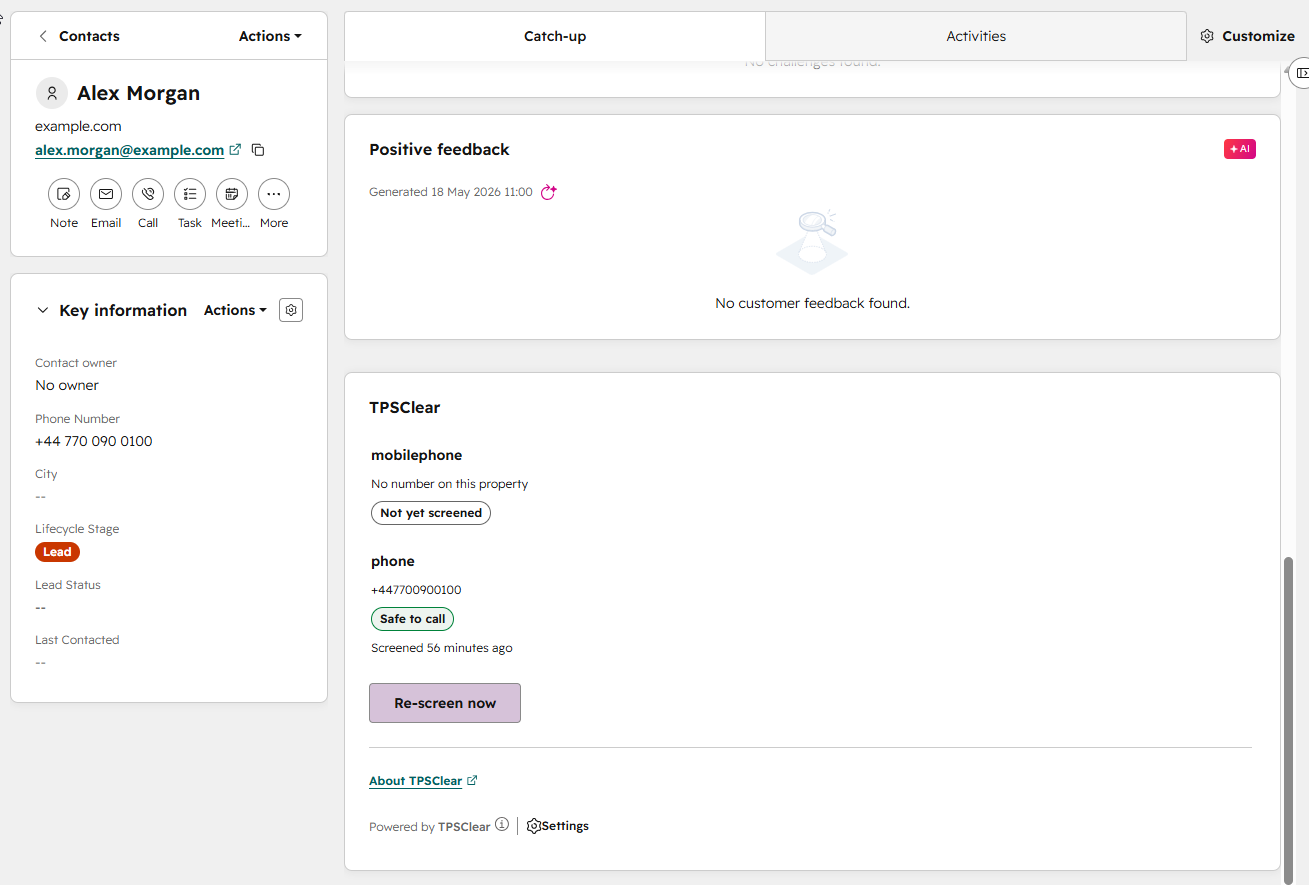
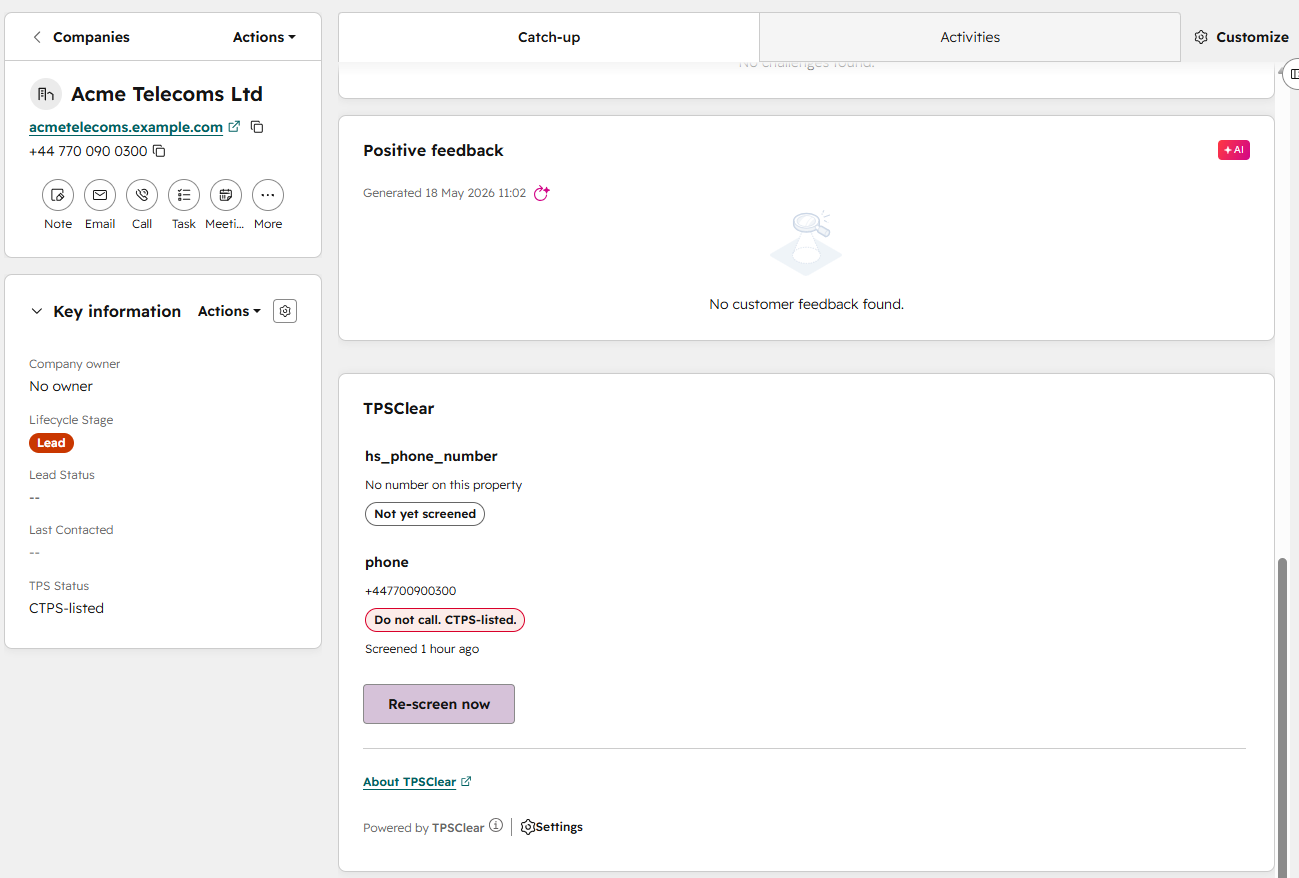
mobilephone to mobilephone_tps_status), so you can tell at a glance which number is safe to call. The default phone field maps to tps_status.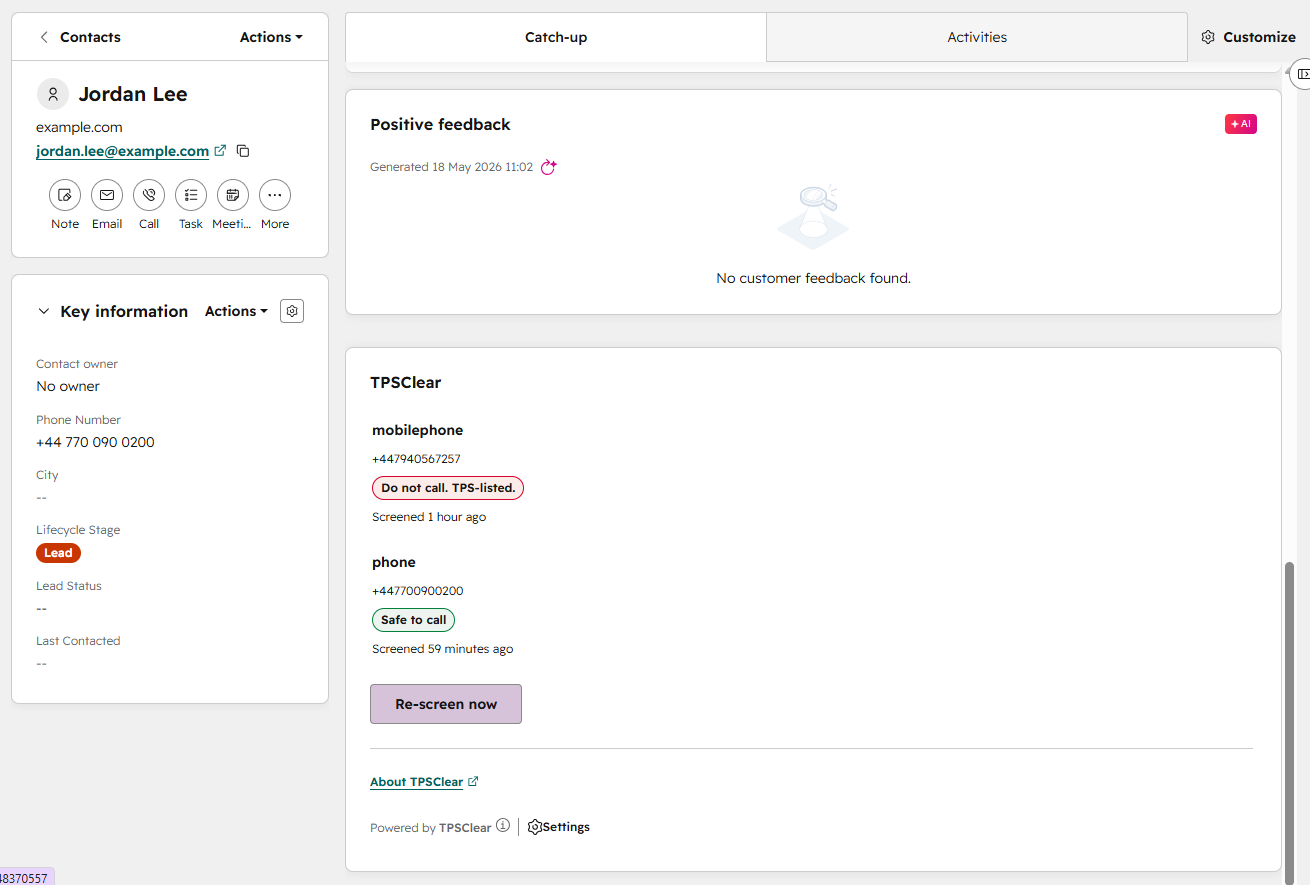
Step 3: Configure (optional)
TPSClear works immediately on the default phone fields. Open the TPSClear settings page inside HubSpot (Settings, then Integrations, then Connected Apps, then TPSClear) to tune two things.
1. Phone-property mappings
Add or remove the phone properties you want screened on contacts and companies. Pick from the standard HubSpot phone fields or enter a custom property name for direct lines or work numbers. Each mapping gets its own status property so verdicts stay independent per number.
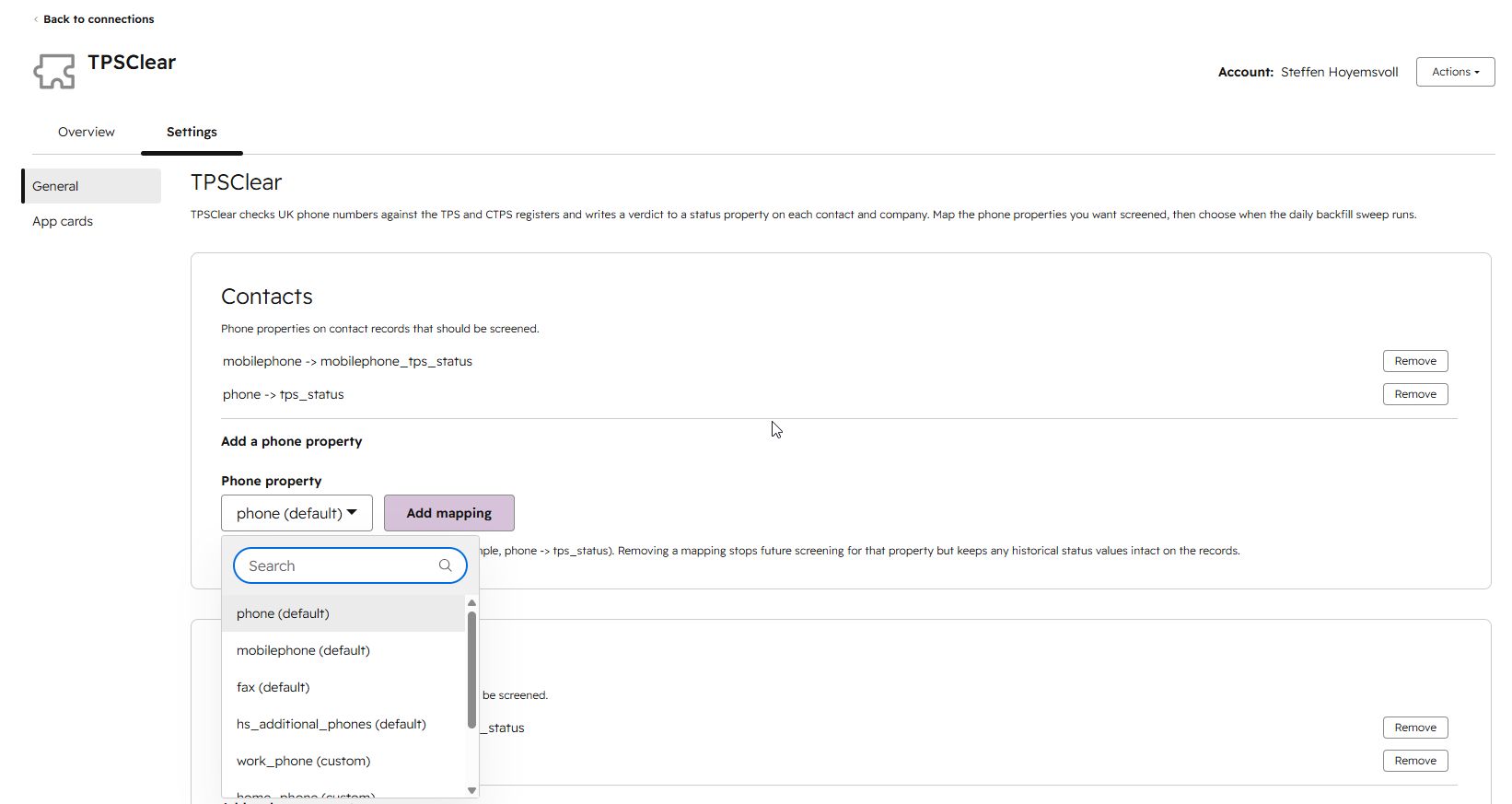
Map any phone property on contacts or companies to its own status field on the TPSClear settings page. 2. Daily backfill hour
Choose the UTC hour for the daily backfill sweep. The real-time path handles live edits within seconds; the backfill catches anything imported or bulk-edited outside the webhook path. Pick a quiet hour for your team and save.
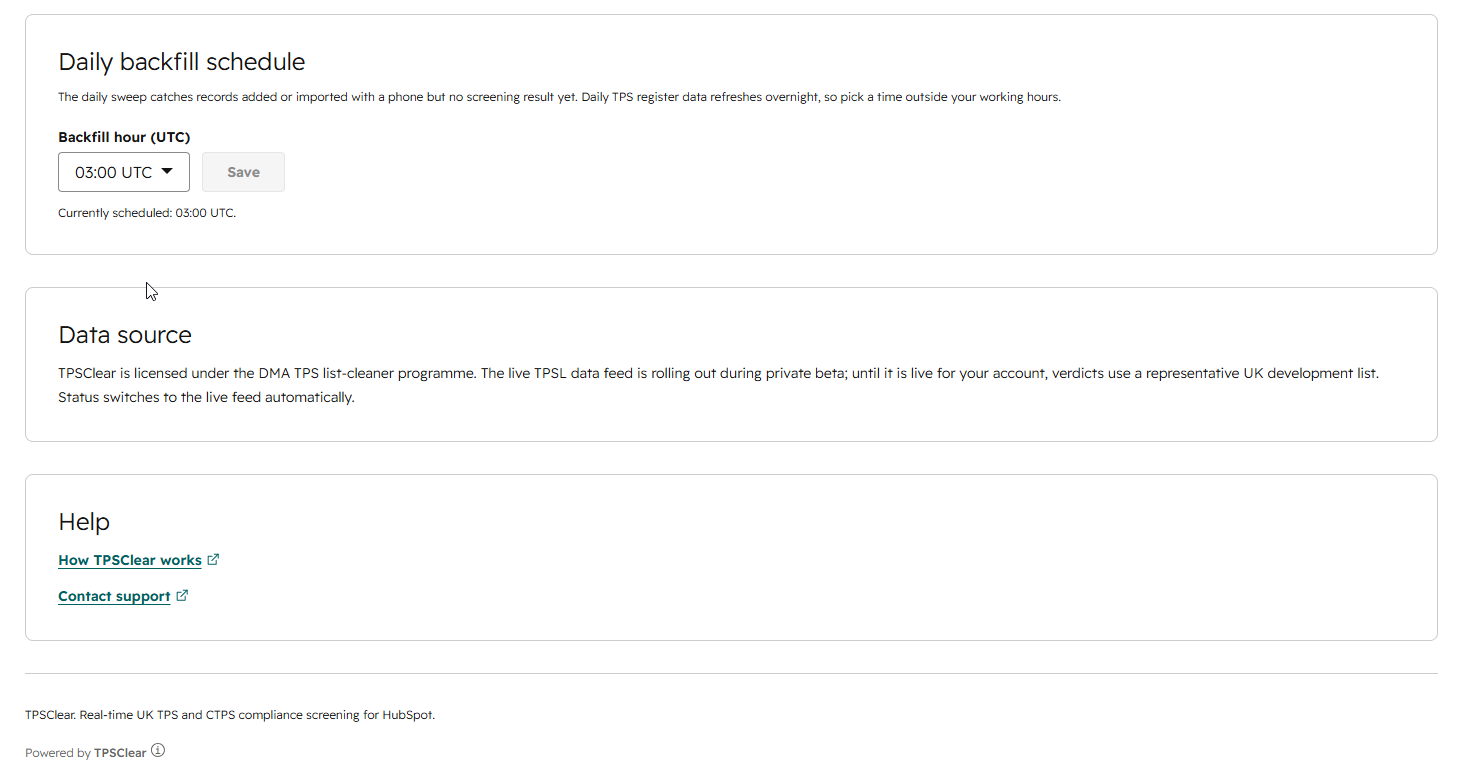
Pick the UTC hour for the daily backfill sweep that catches anything missed by the real-time path. 3. Client lists
Pick the HubSpot contact lists you actually dial. Two things then become available. Screen a list now checks every contact in one list against both registers and writes the verdicts straight back, which is the quickest way to clear a campaign list before it goes to the floor. And only screen contacts in these lists automatically confines the nightly sweep and the live phone-change check to those lists, so a CRM far larger than your dialling segment does not spend your monthly allowance on records nobody rings.
Screening you ask for directly is never restricted by that setting: the re-screen button on a contact, a workflow action, and the list scan itself all run on any record. Contact lists only for now. Reading lists is a separate HubSpot permission, so a portal connected before this feature shipped is prompted to reconnect once.
4. Screening scope
Screening scope sets which records automatic screening covers, with contacts and companies on screen together. Each has its own switch: turn Screen companies automatically off and the nightly sweep and phone-change check leave companies alone entirely, while your company phone mappings are kept, so switching it back on resumes where it left off.
Under each switch you can narrow that object type by a value already on the record. Pick a dropdown, checkbox or yes/no property, tick the values that count as a match, then choose Never screen records that match or Only screen records that match. The common case is a consent field: a segment that has already given you explicit permission to call does not need checking against the registers, so excluding it keeps your allowance for the records that do.
A record with no value in that property counts as not matching, so under an exclude rule it is still screened. That is deliberate: a record with no recorded consent is exactly the one that needs a register check. Leave the filter off and every record stays in scope, which is the default. As with client lists, screening you ask for directly is never restricted: Re-screen now, workflow actions and the list scan all run on any record.
Count records in scope answers the sizing question before anything is spent. It reports how many contacts and companies the settings currently on screen leave in, out of how many carry a phone number in a mapped property, and how many of those are due a screen right now. An object type you have switched off still shows its population, so you can see what is being left alone rather than a bare zero. Those two numbers differ once a portal has been screened, because a verdict under 25 days old is served from cache rather than rechecked. The count reads record totals from HubSpot and uses no screening credits, and it runs against the filter as you have it set, not the last one you saved, so you can check a change before committing to it.
Step 4: The screening journey
1. First screen
After install, existing records are screened on the next daily backfill run. To screen a record immediately, open it and click Re-screen now on the TPSClear card.
2. Real-time re-screen on change
When a phone number changes, by a rep, a form submission, an import, or another integration writing to the field, the webhook fires and the verdict updates within seconds. The sidebar card and the
tps_statusproperty both reflect the new result.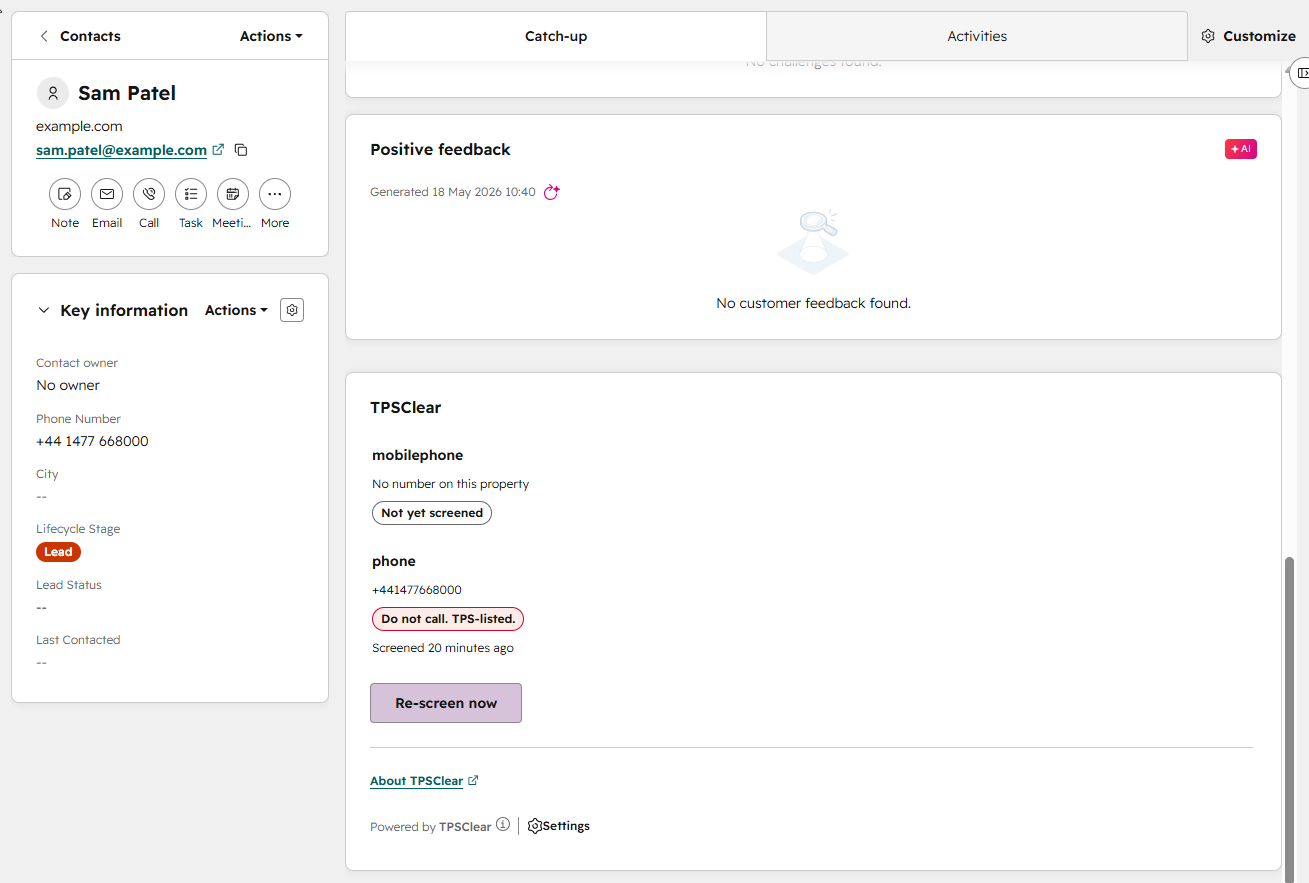
Seconds after a number changes, the verdict updates. Here a number that landed on the TPS register. 3. Use the verdict anywhere
Because
tps_statusis a normal HubSpot property, you can filter lists on it, branch workflows, gate sequence enrolment, and build reports. For example, excludetps_status is any of TPS-listedfrom a calling list before a campaign.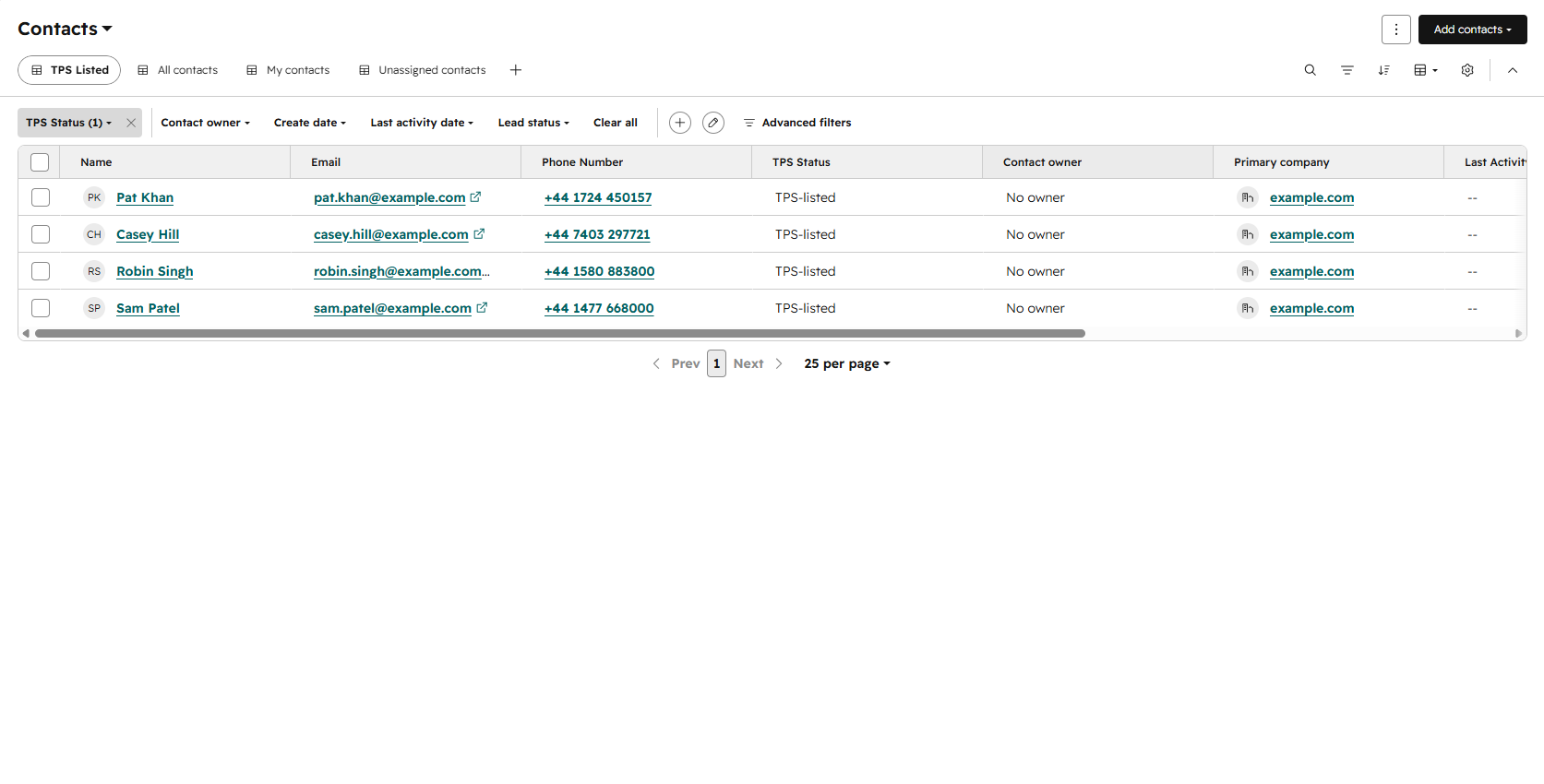
The verdict is a normal HubSpot property, so it filters lists, gates sequences, and feeds reports. 4. Audit trail
Every screen is logged with a timestamp, the number checked, the verdict, and the source (the TPSL register or a manual override), so you can evidence due diligence under PECR.
Scopes and data access
TPSClear requests the minimum OAuth scopes needed to read phone numbers and write verdicts back. Each scope and its purpose:
crm.objects.contacts.read,crm.objects.companies.readread the phone numbers on contacts and companies so they can be screened.crm.objects.contacts.write,crm.objects.companies.writewrite the verdict and checked-at timestamp back onto the record.crm.schemas.contacts.read,crm.schemas.companies.readread property definitions to confirm the status properties exist.crm.schemas.contacts.write,crm.schemas.companies.writecreate thetps_statusandtps_checked_atproperties and their property group on install.
Contact and company data is two-way: TPSClear reads phone numbers from HubSpot and writes verdicts back. Contact and company properties are also two-way: TPSClear reads property definitions and creates its own status properties. No marketing, email, sales-engagement, deals, or files scopes are requested. Full detail is in our privacy policy.
Uninstall and data retention
To uninstall, open Settings, then Integrations, then Connected Apps in HubSpot, select TPSClear, and click Uninstall. This revokes the OAuth tokens and stops all screening. The status properties and their existing values are left on your records so historical verdicts are preserved. You can delete those properties manually if you want them gone.
Troubleshooting
- Verdicts not appearing. Confirm the install completed and the properties exist (Settings, Properties, search for "TPS"). Click Re-screen now on a record to force a check.
- Properties were not created on install. Reinstall from your Connected Apps list, or email support@tpsclear.co.uk with your portal ID and we will re-run property creation.
- A number shows Not a valid UK number. The number is non-UK, empty, or not in a recognisable format. TPSClear screens UK numbers only.
- A number shows Unknown (check failed). A register lookup could not be completed. The record is re-screened automatically; TPSClear never assumes Clean. To monitor these, filter a list or report on the TPS Status property with that value.
Need help with your setup? Email support@tpsclear.co.uk or use the contact page.