TPSClear for Pipedrive
TPSClear checks the UK phone numbers in your Pipedrive against the TPS and CTPS registers and writes the result onto each person, organisation and lead, so your team can see who they may call before they dial.
1. Install
Install TPSClear from the Pipedrive Marketplace and approve the access it asks for. Any Pipedrive user who can install apps for your company can do this. The listing is with Pipedrive for review; until it is live, join the waitlist and we tell you the day it opens. TPSClear asks for:
- People and organisations: to read phone numbers and write the TPS result back.
- Leads: to screen the number of the person or organisation a lead is linked to.
- Custom fields for people, organisations and deals: to create the TPS fields listed below. Lead fields in Pipedrive are shared with deals, so the same fields also appear on deals, where they stay empty.
- Webhooks: so a new or changed number is screened straight away.
2. The fields TPSClear adds
On people, organisations and leads:
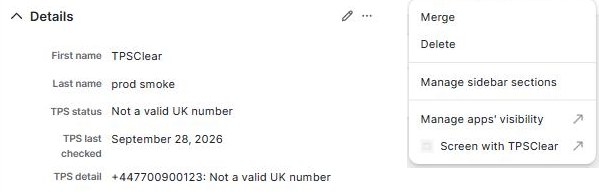
- TPS status: one of Clean, TPS-listed, CTPS-listed, Do not call (opt-out), Not a valid UK number, or Unknown (check failed).
- TPS last checked: the day of the last successful check.
- TPS detail: each number on the record with its own result.
A person in Pipedrive can hold several phone numbers. TPS status shows the most cautious result across all of them: if any number is listed, the person reads as listed. TPS detail shows which number it was.
Organisations have no phone field of their own in Pipedrive. If you have added a phone-type custom field to organisations, TPSClear screens that.
3. When numbers are screened
- A person or organisation is added with a phone number.
- A phone number is added or changed. Editing other fields does not trigger a check.
- A lead is created, or linked to a different person or organisation.
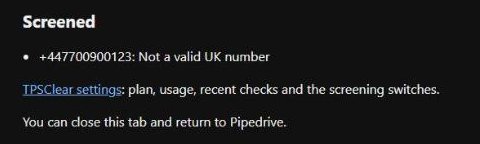
- Someone picks Screen with TPSClear from the actions menu on a person or organisation. This always runs a fresh check.
- Optionally, a nightly sweep checks records that have never been screened or whose result is 28 or more days old.
A number checked in the last 27 days is not looked up again. If a check fails, the record reads Unknown (check failed) and is retried; it is never marked Clean on a failure.
4. Settings
Screening is switched on when you install, so your free checks work straight away, and stays on when you choose a plan. In TPSClear settings you can switch screening off, switch the nightly sweep on (it is off to begin with), and see your plan, usage and recent checks. To open settings later, pick Screen with TPSClear on any person or organisation in Pipedrive and follow the settings link on the page that opens.
5. Uninstall
In Pipedrive, open Tools and apps, then Marketplace apps, and uninstall TPSClear. Screening stops at once and TPSClear no longer has access to your Pipedrive. The TPS fields stay on your records until you delete them. Uninstalling does not cancel a subscription: write to support@tpsclear.co.uk and we cancel it for you.